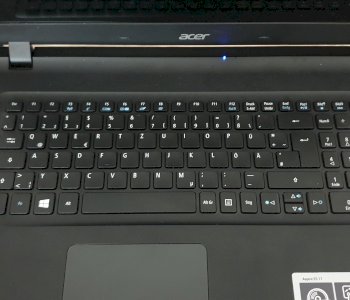
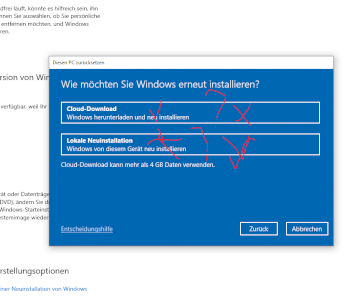
Screenshot with Windows 10?
I've seen so many tutorials but nothing works on my laptop
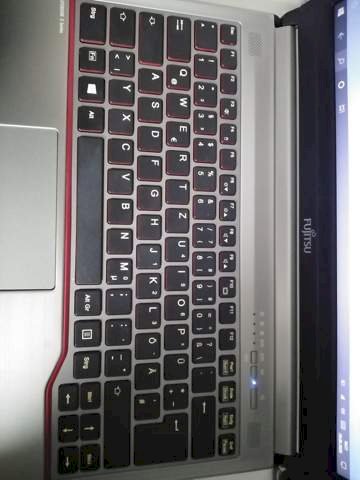
All you have to do is download Snipping Tool. When you've done that, just hit the scissors and make a screen.
You have to press Print and then open Paint and press Ctrl + V, as the screenshot is only temporarily saved
Press Fn & Print at the same time
Alt & Fn & Print for the current window
Windows & FN & Print saves Screen as PNG
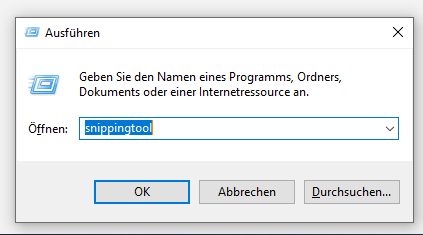
Win + r
snippingtool
Enter
TAaah thanks but what do I have to do now jzd is the picture there but how do I save it?
Either: right click on the picture> save as> select your desired storage location or more complicated: open word> new document> Ctrl + V (insert) and save
Thank you it still doesn't work, but thank you ii
What kind of picture format do you want to save? Is it copyright protected? If not, open with "Photos" and save from there
A full screen screenshot is very simple: press the Windows key + print. - Finished.
You can find the screenshot under "Images" in the "Screenshots" subfolder.
If you can use "paint":
Press the "Print" key> Open Paint> Insert> Edit the screenshot as you see fit (e.g. Crop, mark, label)> To save: "File"> Save as> JPEG image> Enter the file name and insert the Fixed destination folder (e.g. Desktop)> Save.