Back up files on windows 10?
I want / have to set up my laptop again. I would like to back up my data for this. How do I do it best so that I can then drag the data back onto the newly installed device without any problems.
Another question: How can I back up programs so that I can continue to use them after reinstallation?
Have btw 64-bit based Windows 10 Home
You can e.g. Uploading your files to a cloud (would probably take a long time).
If several hard disks are installed in this laptop, you can copy all your data to the one on which there's no Windows (if it is not deleted).
You would then have to reinstall the programs. If you mean games with the programs they should be on your Steam acc or something, as far as I know you can just copy them and they should work.
If you have one you can also connect and secure an external hard drive
Files also web favorites via ne cloud (where they should be backed up every second anyway) ext. Hard drive or hold your brother's Pc or antique DVD
Programs such as mail programs, games, office have to be reinstalled but not re-registered, that is not stored on your PC but e.g. Office at MS The email addresses at the provider, access data and passwords can be found on Google.
What else do you mean by accounts?
The Windows user account
I have one, my brother has one and my mother
Yes I have an external hard drive but how should I secure it. So file version history or what and whether my brother's accounts on the same pc are backed up with the file version history
As a Microsoft account, they are not on the computer, but on the web (just like Office, the Google account). If you do something once, that's it. You have the access data with Google (if saved).
And the Win Key that is absolutely important is stored on the mainboard.
Yes, but the other users on the pc have also saved files. Are they also saved with a file version history. For example, the pictures on my mother's Acc. I know the Accs are actually web-based
A file version history is now different. We didn't talk about that.
I also save it, but the first one bucks with me and secondly I've never used it, I think but everything is saved there.
______________________________________________________
Tip that is not meant bad.
As an old hand who started with Basic MS Dos and then some of the Win versions, I always had a problem like everyone back then. Nobody had a second computer or cell phone for MS Dos or WinXP. Don't even DSL. No cloud no Google / Microsoft account. Photos were kind of not digital. Nobody had a CD / DVD drive either. Floppy disks. Nen modem with analog dial-up.
We had only one thing. Think for yourself Try it.
Then the system was wide. I shouted at Karstadt when my half lappi (the first thing in the laptop direction) had blown up.
There were novels on it for which I had a very fresh author contract.
________________________________________________________
You can see if all photos are saved. If necessary, everyone does it alone.
You can see in the file version history (further options) what is saved.
I don't know which version of Windows 10 you have (i.e. The internal version number), but the file version history, if you have activated it, only saves the files / folders that are in "Libraries", on the "Desktop", "Favorites" by default "and" Contacts "folders are located. You should add any paths that are still missing in the file version history. If all of your data is mainly in your user profile, you can also simply create a "library" called "Backup" and add the path of your entire user profile directory. Then you would have to click on "Run now" in the file version history, because the file version history saves your files by default only if your PC is inactive for at least 1 hour.
You could also use the good old "Backup and Restore" program (sdclt.exe) from Windows 7, which was also available in Windows 8, but was removed in Windows 8.1, but was reintroduced in Windows 10 should be removed at some point (I think I'm not using Windows 10, so I can't say that exactly now).
The file version history is namely **** and has its pitfalls (eg that by default only the "desktop, favorites, contacts and the libraries are used. But some people don't even know what the" libraries "are, consequently the file version history only saves unimportant stuff, pretty annoying for emergencies, and who backs up his most important files under "Desktop, Favorites or Contacts": - D? So I don't File version history is actually "not a" real "backup and restore program" in that sense.
The "backup and restore tool" from Windows 7, which hopefully should still be available in your Windows 10, is 1,000 times better than the file version history. By default, all files that are in the user profiles are backed up and only need to be set up once for all users (by the admin, so to speak).
I don't know if you've already done it, your question is 2 days old, but why do you want to put your laptop on again? Is there a problem that you think reinstalling could fix it? What if it doesn't fix the problem? The "Backup and Restore Tool" also includes a "System Image Backup" option. The advantage of this program is that everything is saved. Your data, programs and settings, the entire operating system! If the reinstallation does not work, you could at least restore the previous status! The disadvantage is that this backup is at least as large as the used storage space of the hard drives to be backed up. From a 250 GB hard drive, of which 100 GB is occupied, this backup would be 100 GB, because the "system image backup" does not back up the files, but the drives at the "block level" / sector level. However, this type of backup is extremely fast.
You can run the "system image backup" on the command line. Powershell or CMD.
e.g.:
So let's say your backup hard drive (external or internal, but must be a separate one. It must not be Windows) has the drive letter "B:" and the partitions of the hard drives to be backed up are "C:", " D: "and" E ". "AllCritical" backs up at least the partitions that are required to run Windows or on which programs and games are installed - "Include" means "explicitly" back up, including the partitions that are not required to run Windows. "quiet" simply means that you shouldn't ask if you really want to save the partitions: -D. Do we like: -D.
wbadmin start backup -backupTarget. : -include. :, D:, E: -allCritical -quiet
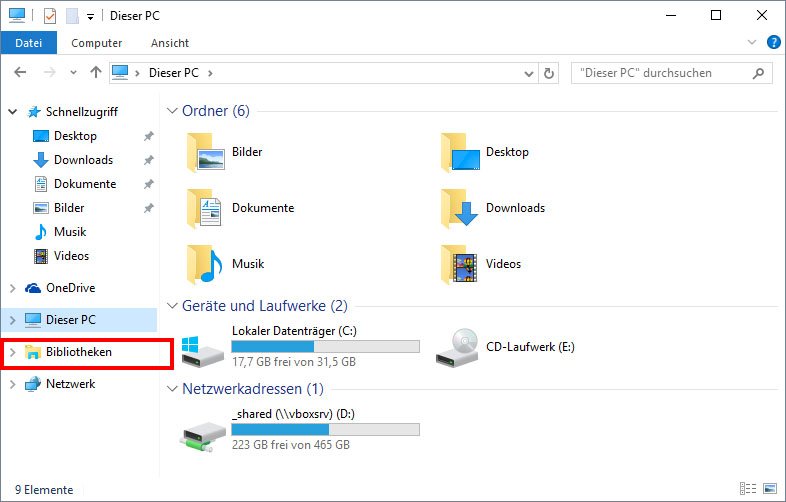
"Looking for an older backup?" This is under "File version history".
https://msegceporticoprodassets.blob.core.windows.net/inline-media/2737a496-7cbb-4ea8-9fea-69c4faa48a76-en
Other options would be "COPY", "XCOPY" or "ROBOCOPY", but more for tech-savvy users. I would prefer "ROBOCOPY" if you were because "ROBOCOPY" is an improvement of "COPY" and "XCOPY".
https://de.wikipedia.org/...wiki/Xcopy
https://de.wikipedia.org/...i/Robocopy
Syntax:
-------------------------------------------------- -----------------------------
ROBOCOPY:: Robust file copying for Windows
-------------------------------------------------- -----------------------------
Simple syntax:: ROBOCOPY source target / MIR
Source:: source directory (drive: \ path or \\ server \ share \ path)
Target:: target directory (drive: \ path or \\ server \ share \ path)
/ MIR:: Mirrors a complete directory structure.
For more information, use the "ROBOCOPY /?" Command
**** The "/ MIR" command can both copy and DELETE files.
-------------------------------------------------- -----------------------------
ROBOCOPY:: Robust file copying for Windows
-------------------------------------------------- -----------------------------
Syntax:: ROBOCOPY source destination [file [file]…] [options]
Source:: source directory (drive: \ path or \\ server \ share \ path)
Target:: target directory (drive: \ path or \\ server \ share \ path)
File:: Files to be copied (name / placeholder: standard is "*. *")
::
:: Copy options:
::
/ S:: Copies subdirectories, but not empty subdirectories.
/ E:: Copies subdirectories, including empty subdirectories.
/ LEV: n:: Copies only the top levels of the source directory structure.
/ Z:: Copies files in restart mode.
/ B:: Copies files in backup mode.
/ ZB:: uses restart mode. If access is denied, the backup mode is used.
/ EFSRAW:: Copies all encrypted files in EFS RAW mode.
/ COPY: copyflags:: Specifies which content should be copied for files (the default is "/ COPY: DAT").
(Copy flags: D = data, A = attributes, T = time stamp).
(S = security = NTFS ACLs, O = owner information, U = monitoring information).
/ DCOPY: T:: Copies directory timestamps.
/ SEC:: Copies files with security information (corresponds to "/ COPY: DATS").
/ COPYALL:: Copies all file information (corresponds to "/ COPY: DATSOU").
/ NOCOPY:: Does not copy file information (suitable for use with "/ PURGE").
/ SECFIX:: Corrects file security in all files, including omitted files.
/ TIMFIX:: Corrects the time of day for files in all files, even in omitted files.
/ PURGE:: Deletes target files / directories that no longer exist in the source.
/ MIR:: Mirrors a directory structure (corresponds to "/ E" with "/ PURGE").
/ MOV:: Moves files (deletes files after copying to the source).
/ MOVE:: Moves files AND directories (deletes them after copying to the source).
/ A +: [RASHCNET] :: Adds the existing attributes to the copied files.
/ A -: [RASHCNET] :: Removes the existing attributes from the copied files.
/ CREATE:: Creates a directory structure and only zero length files.
/ FAT:: Creates target files only using 8.3 FAT file names.
/ 256 :: Disables support for very long paths (> 256 characters).
/ MON: n:: monitors the source. Reruns if more than n changes are found.
/ MOT: m:: monitors the source. Will be executed again in m minutes after a change.
/ RH: hhmm-hhmm:: execution hours - controls when new copying can be started.
/ PF:: Checks the execution hours per individual file (not per run).
/ IPG: n:: Distance between packets (ms) to free up bandwidth on slow connections.
/ SL:: Copies symbolic links to the target.
/ MT [: n] :: Make multithreaded copies with n threads (default value: 8).
n must be between 1 and 128 (inclusive).
The option is not compatible with "/ IPG" and "/ EFSRAW".
The output can be redirected with "/ LOG",
to get better performance.
::
:: File selection options:
::
/ A:: Copies only files with the "Archive" attribute.
/ M:: Copies only files with the "Archive" attribute and resets the attribute.
/ IA: [RASHCNETO] :: Includes only files where one of the attributes is set.
/ XA: [RASHCNETO] :: Excludes files where one of the attr